{NUM}
{OVERLINE}
{TITLE}
{PARAGRAPH}
{FEATURE_ICON}
{FEATURE_TITLE}
{FEATURE_DESC}
Find out how to charge and pair your DualSense® wireless controller with your PlayStation®5 console, change the controller settings, and update the device software.
To use your controller, you need to pair it with your console.
After you pair a controller (controller 1) with your PS5 console, you can pair an additional controller (controller 2) wirelessly. If a USB cable is connected to your controller, disconnect it.
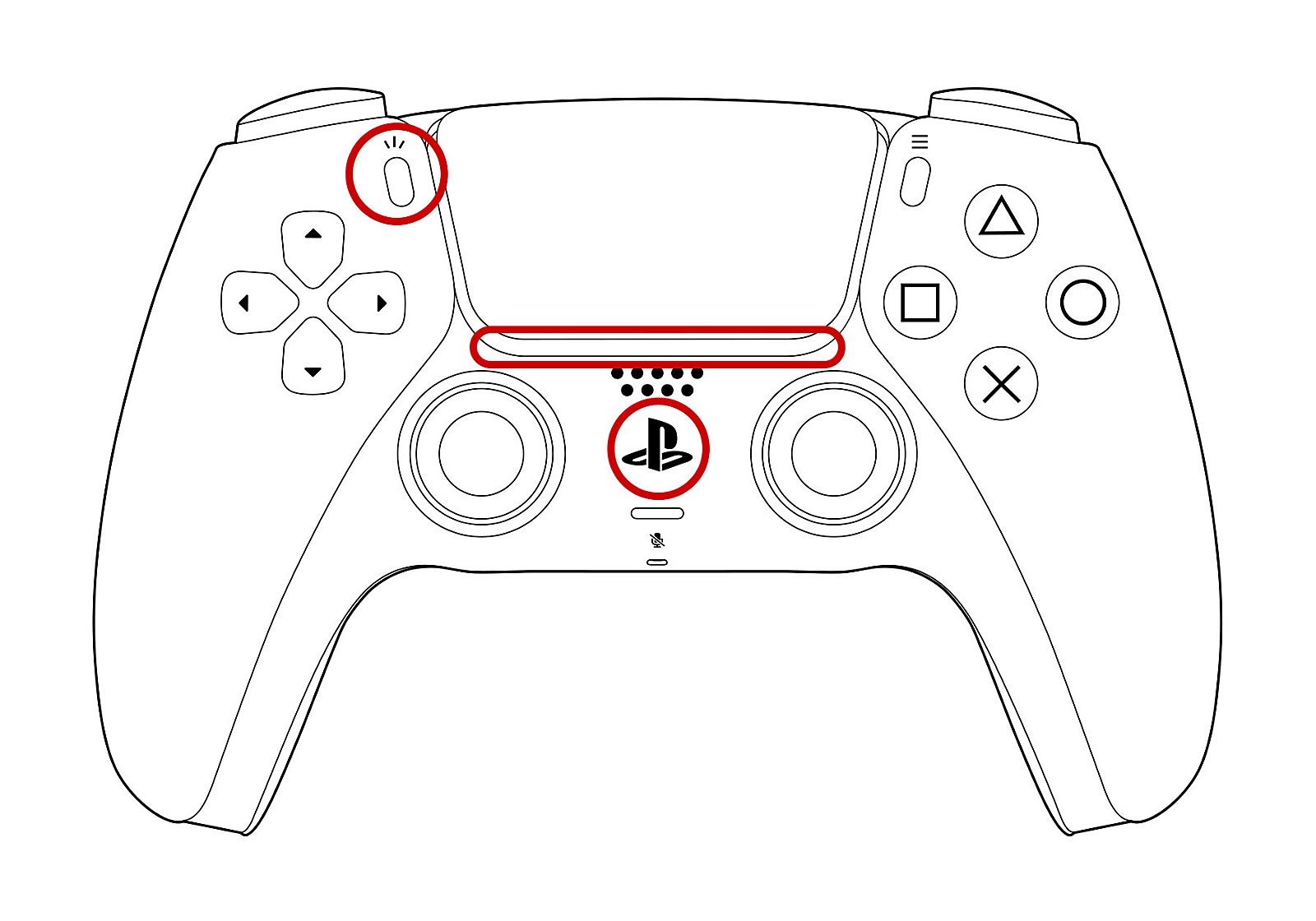
You can pair your controller with PS5 consoles, mobile devices and computers. This makes it easier to switch between using your controller with your console and other devices. You can have up to four different pairings registered to one controller and each pairing is assigned a slot.
For your PS5 console, follow the steps in Pair a controller using a USB cable or Pair a controller wirelessly, and your controller automatically assigns the paired PS5 console to the next open slot.
For other devices, visit the guide below.
By pressing a combination of the PS button and one of the action buttons (triangle button/ circle button/ cross button/ square button) ), you can assign a console to your desired slot. To do this, you need an already paired controller (controller 1) to pair the additional controller (controller 2).
Slot number | Buttons used | Player indicator lights |
Slot 1 | PS button and triangle button | One light |
Slot 2 | PS button and circle button | Two lights |
Slot 3 | PS button and cross button | Three lights |
Slot 4 | PS button and square button | Four lights |
When you want to use your controller with another console you've paired to, press and hold one of the action buttons, and then press the PS button for 3 seconds until the player indicator on the controller blinks according to the slot number you selected. The light bar blinks, and when you successfully switch slots, the player indicator lights up.
You can use your controller away from your console. Find out more about compatible devices, applications, and feature support by visiting the guide below.
Press the PS button to display the Control Centre and select Accessories to check the battery level of the controller.
While the controller is charging, an animated battery icon with a lightning bolt symbol will appear on the screen.

When the DualSense wireless controller is fully charged, the battery icon will stop animating and display three bars.

You can charge your controller while your PS5 console is in rest mode.
If you experience any issues while trying to charge your controller, please try the following steps:
Please note, not all USB chargers will be capable of charging the DualSense wireless controller.
You can adjust the output device, volume levels and voice chat balance via the control centre.
For general controller settings:
Updates for your DualSense wireless controller are added once you update your PS5 console system software. Pair your controller and follow the on-screen instructions to update.
To start an update manually:
You can also use a PC to update your DualSense controller software. Please visit the guide below for more information.
Get help and support for your PlayStation products
Enter your date of birth.
LIVE_BLOG_FEED_AGE_VERIFY
{OVERLINE}
{PARAGRAPH}
{FEATURE_DESC}